
Quick checklist
- Check your spam or junk folder.
- Wait up to 3 minutes before requesting another verification code.
- Add no-reply@rapidformations to your safe senders list.
- Using a work email? Ensure firewalls have not blocked us.
- Request a new verification code - and use only the newest one.
- Still haven't received your code? Get in touch.
1. Check your spam or junk folder
Automated emails are sometimes filtered away from your main inbox. Search your whole mailbox for "verification code" or for our sender address, no-reply@rapidformations.co.uk.
|
Email provider |
Where to look |
|---|---|
|
Gmail |
Spam folder, plus the Promotions and Updates tabs |
|
Outlook / Hotmail |
Junk Email folder, plus the Other tab if Focused Inbox is on |
|
Yahoo Mail |
Spam folder |
|
Apple iCloud Mail |
Junk folder |
If you find the email there, mark it as Not spam (or Not junk). This helps future codes reach your inbox.
2. Wait up to 3 minutes before requesting another verifcation code
Most verifcation codes arrive within seconds, but some email providers hold incoming mail briefly before delivering it. Please allow up to 3 minutes before requesting another code.
3. Add us to your safe senders
Add no-reply@rapidformations.co.uk to your contacts or safe senders list to ensure our emails reach your inbox.
Gmail: Open any email from us, select the three-dot menu, and choose Add to contacts. Or create a filter for the address and tick Never send it to Spam.
Outlook / Hotmail: Go to Settings > Mail > Junk email, then add the address under Safe senders and domains.
Yahoo Mail: Add the address to your contacts, or create a filter that sends it to your Inbox.
Apple iCloud Mail: Add the address to your contacts.
4. Using a work email?
Company firewalls can block automated emails without sending them to spam. Ask your IT team to allowlist no-reply@rapidformations.co.uk.
5. Request a new code
If your code still hasn't arrived after a few minutes:
- Navigate back to the MFA Verification screen.
- Select Resend code.
- Check your inbox and spam folder for the new email.
- Enter the code from the most recent email.
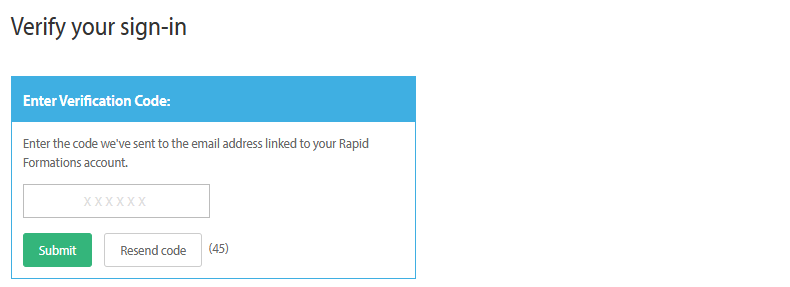
Each time you request a new code, every earlier code is cancelled straight away. Only the newest code will work.
If you see an "Error: Invalid Code" message, you may be entering an older code. This is common when a delayed email arrives after you've already asked for another one.
To be sure you're using the right code, sort your inbox by newest first and use the code from the latest email. Delete older verification emails to avoid mixing them up.
Not found what you're looking for?
Please get in touch and we'll be happy to help:
Email: You can submit a request using our contact form
Phone: 020 7871 9990
Live Chat: Select the live chat icon on the bottom right